
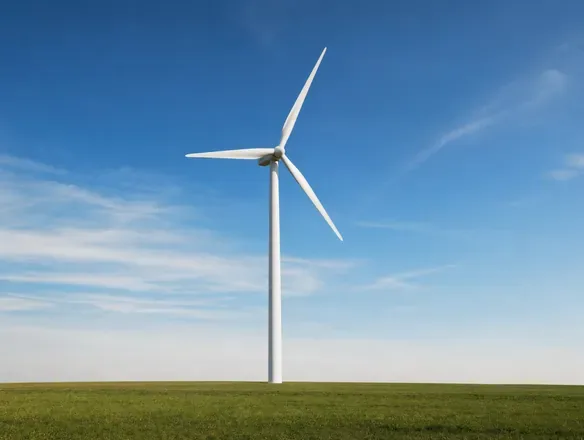
Two of the codes, each sent with one ordinary photo: /lightshift keeps the scene and changes the light, /xray turns the shell see-through while the machine keeps working. The full library — including the codes that don't work yet — follows below.
Looking for still images? 50 visual codes for ChatGPT do the same thing for pictures.
Visual codes for video
Upload one image, add one code, and an AI video tool turns it into a five-second teaching clip — a time-lapse, an X-ray, a life cycle, a lesson in film language. Every code on this page has been tested on real images, and the ones that failed are shown too.
What is a visual code for video?
A visual code for video is a one-word, slash-prefixed prompt — like /timelapse or /xray — that you send to an AI video tool together with a start image. The model reads the word as an instruction for how the picture should move or change, and returns a short clip. This page collects codes with classroom value, from science processes to film language for art class, each shown as start image and finished clip, plus codes for everyday use. They are not official commands, and they work across tools rather than in one product. Codes that failed in testing are listed with what went wrong.
Make your own clip
Choose a start image
A photo, a drawing, a museum painting or an image you have generated. The picture decides more than the code: a code can only change what is already there.
Add one code
Upload the image to your video tool and send the code — for example /timelapse. Established words like time-lapse or X-ray often work on their own.
Add a sentence if needed
Say how it should move — direction, pace, what stays still — never what the result should be. If you write the answer, the code is no longer doing the work.
Check before you show
Watch the whole clip before the lesson. Video models look convincing and still get physics, biology and history wrong.
Results vary. The same code on the same image can give a different clip next time, and different video tools read the same word differently. If you don't get what you wanted, don't give up on the code — add more information to complement it: which direction the camera should move, how fast the change should happen, or exactly what should stay still. One extra sentence usually does it. Cards with an Add line show the exact sentence we used.
Where can you make AI video?
Most general AI assistants now generate short clips from an image, and several dedicated video tools do the same. Check the age limit before you plan a lesson: video generation in Gemini requires a paid plan and is 18+, and most other tools are 13+ with parental consent below 18. In most classrooms that means the teacher generates and the class analyses. You are responsible for following your country's rules and your school's guidelines. All clips on this page were made with Seedance 2.0, image-to-video, five seconds.
Why moving images — and when not
Animation beats a still picture when the content is change: a meta-analysis of 26 studies found an overall effect of d = 0.37, rising to d = 1.06 for procedural skills (Höffler & Leutner, 2007). Short, segmented clips are easier to learn from than long ones (Rey et al., 2019), and clips without on-screen text work best when the teacher does the talking (Berney & Bétrancourt, 2016). No study has yet tested AI-generated clips against still images. These codes are grounded in the research on animation — not proven in their AI form.
In the classroom
Spot the error
Video models cannot do physics. In the VideoPhy-2 benchmark the best model got both the content and the physics right in only 22 % of the hard test cases (Bansal et al., 2025). That makes the mistakes teaching material. Cards marked Spot the error contain one. Four ways to use any clip:
- Spot the error — what in the clip could not happen, and how do you know?
- Real vs AI — compare the clip with real footage of the same process.
- Predict and stop — pause before the end and let the class predict the outcome.
- Silent loop — play the clip without text and explain it yourself.